


Gaming Mode - Game Booster PRO
4.44.56K Reviews
App Specs
- Version
- 2.0.5
- Updated On
- License
- Free
- Downloads
- 10,000,000+
- Developer
- ZipoApps
- Categories
- Personalization
- Platform
- Android, iOS
Screenshots
 Analysis by AppCompare
I treat a gaming booster as a practical helper, not a magic switch: it may make a session easier to manage, but it cannot make a phone more powerful than its hardware allows. That distinction matters with Gaming Mode - Game Booster PRO. Its main appeal is bringing game-related controls together so I can prepare a phone for play, rather than expecting a dramatic improvement in every title.
A repeatable routine is more useful than a one-time boost
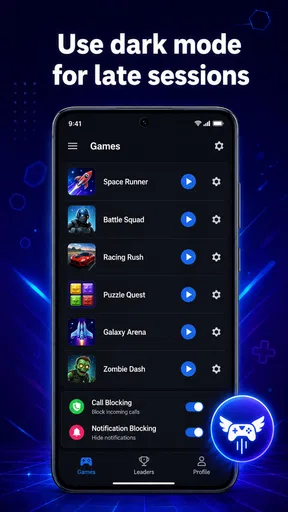
My best approach is to set up the games I actually play, then use the same short routine before each session. I check which game is selected, decide whether I want fewer interruptions, and make sure the chosen settings suit that particular moment. A quiet solo session and a quick match while waiting for someone do not need exactly the same setup.
That game-by-game mindset is more useful than switching every available option on at once. It gives me a clearer sense of what changed if a game behaves differently, and it avoids treating a casual puzzle game like a demanding online match. I would start with one title, try a setting, and keep it only if it makes the session more comfortable.
Choose settings for the session, not just the game
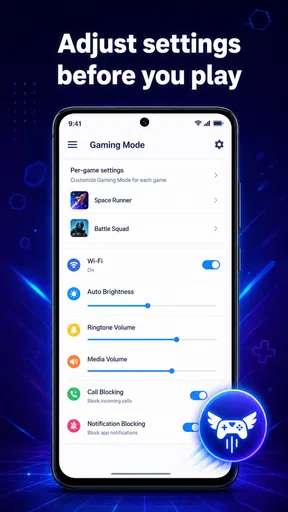
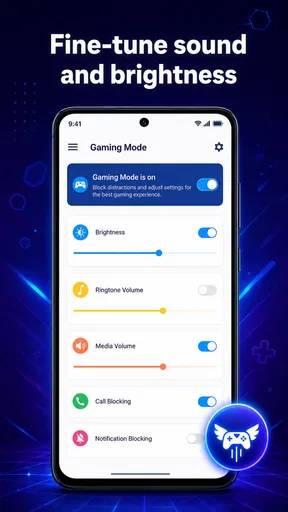
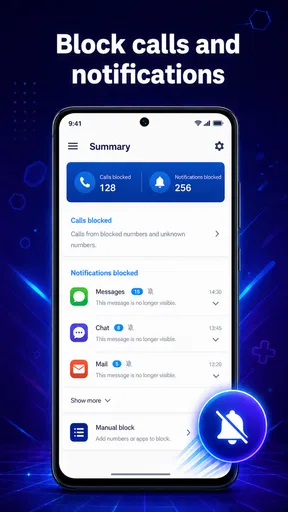
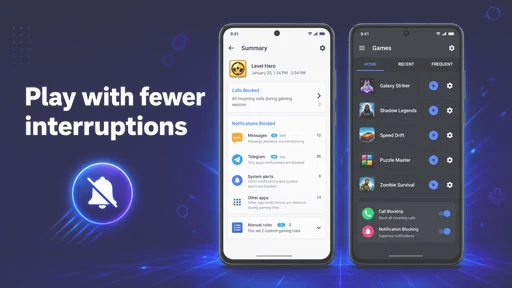
Notification control is valuable when a message or call banner would cover an important part of the screen. But I would not silence everything automatically if I need to stay reachable. Before a long session, I decide whether I can afford to miss alerts; before a short one, I may leave more of the phone’s usual behavior alone. The useful habit is making that choice deliberately.
Brightness adjustments also deserve a quick check. A level that looks right indoors can feel harsh in a dark room, while a dim screen may be difficult to see outdoors. If automatic brightness changes are enabled for a game, I would test the result in the place I normally play instead of assuming one setting suits every environment.
RAM cleanup is another control to use with realistic expectations. Closing background apps can help when several are competing for resources, but repeatedly closing everything is not automatically better. Some apps may need to reload when I return to them, and the operating system already manages memory. I see this as an occasional preparation step, not a chore to repeat after every match.
Small shortcuts can improve the whole session
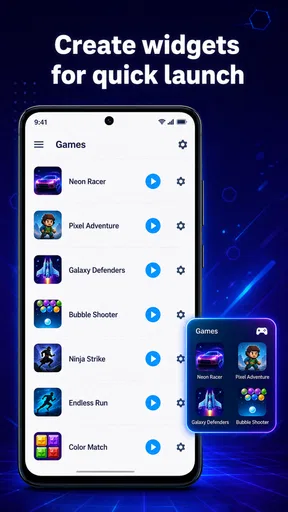
For a game I open often, saving its preferred setup means I do not have to rethink the basics each time. I can reserve stronger interruption controls for competitive play, use a lighter setup for a relaxed game, and keep a separate mental checklist for recording. That simple separation prevents a useful tool from turning into a pile of settings I no longer remember changing.
Worth Reading Before You Choose

EA SPORTS FC Mobile 26 Is a Bigger Football Game, but It Takes Time

Flipboard Shows What News Apps Must Do Beyond the Feed

Switching to Android Auto Means Rethinking Your Driving Routine

Google Calendar Makes a Crowded Week Easier to Manage

Ludo King Makes the Most of the Minutes Between Plans

Baby Panda World Brings Quick Play to Modern Phones, but Its Game Library Feels Busy
Screen recording is most helpful when I have a reason to capture a moment, such as showing a friend how I cleared a difficult section. I would check the available storage and decide before starting, rather than discovering afterward that a long recording is inconvenient to keep. Recording also uses device resources, so I would not assume it is the best choice when smooth play is the only priority.
For online games, I would compare the connection in the same place and under similar conditions before deciding whether a network option helps. A booster cannot repair weak coverage, a busy household network, or a distant server. If a match is unstable, checking the ordinary connection first is more useful than expecting an app setting to solve every cause of lag.
Where a booster helps—and where it cannot
This is most appealing to someone who regularly switches between games and wants a convenient place to manage interruptions and per-game preferences. It is less compelling if the phone already handles games comfortably and its built-in focus or gaming tools cover the same needs. Comparing those native controls first can prevent duplicate settings and unnecessary background activity.
It is also not the right answer for every performance problem. A game that stutters because the phone is hot, storage is nearly full, or the title itself is demanding may not become smooth just because background apps are closed. I would take a break if the device is overheating, close only apps I genuinely do not need, and lower the game’s own graphics options if it offers them. Those steps address common causes more directly.
Who should give it a try
Gaming Mode is a free personalization app from ZipoApps, with a 4.4 average from around 414,000 ratings and more than 10 million installs. It is rated for Everyone, and its current version is 2.0.5. I would consider it if I play on Android 8.0 or newer and want a more deliberate routine around game settings. Optional in-app purchases range from $0.99 to $149.99 per item, so I would review any purchase screen carefully rather than assuming every capability is included at no cost.
The app is a weaker fit for someone who expects a guaranteed frame-rate increase, a faster internet connection, or a substitute for the phone’s built-in controls. It is also worth skipping if managing another app feels like more work than simply turning on the phone’s existing focus mode. Its value depends on whether its game-specific approach is more convenient for you.
Getting Started with Gaming Mode
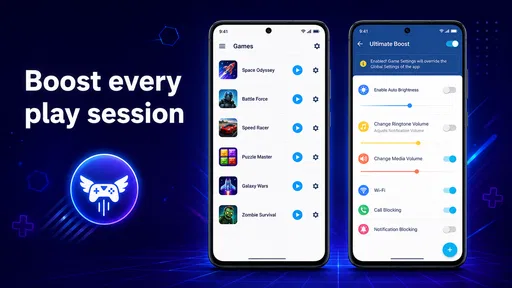
The first thing I noticed after installing Gaming Mode - Game Booster PRO was its user-friendly interface. It's set up in a way that even the least tech-savvy among us can navigate with ease. The app guides you through the setup process, allowing you to customize gaming preferences for each game installed on your device. This means you can tailor your experience for maximum gaming efficiency.
Customizing Your Game Settings
One of the standout features is the ability to adjust individual game settings. You can disable notifications, optimize RAM, and even adjust brightness levels automatically when a game starts. This level of customization ensures that each gaming session is as smooth as possible, without the constant buzz of unwanted alerts.
Moreover, for those who like to share their gaming exploits, the app includes a screen recording feature. It’s perfect for capturing victory moments or sharing tips with friends. The recordings are high-quality and stored directly on your device.
Performance Boost
Now, let’s talk about performance. The app claims to boost your device’s performance while gaming. After testing it with several resource-heavy games, I did notice a difference. The games ran smoother, and I didn’t experience the usual lag that sometimes plagues my older phone model.
The secret sauce seems to be the app’s ability to free up RAM by closing background apps. This feature ensures that all your device’s resources are focused on the game at hand, enhancing responsiveness and speed.
Network Management
Another nifty feature is the network management tool. For online gamers, a stable and strong connection is crucial. The app has a built-in ping booster that helps reduce latency, providing a more seamless online gaming experience. While this feature might not turn your 3G into a lightning-fast 5G, it does help in stabilizing the connection you have.
User Experience
Overall, using Gaming Mode - Game Booster PRO has been a pleasure. The app runs quietly in the background, and I didn’t notice any significant battery drain, which is a common concern with performance-enhancing apps. The developers seem to have struck a balance between boosting performance and maintaining battery life.
Additionally, the app’s ad-free environment is a blessing. Nothing is more frustrating than having ads popping up when you’re trying to tweak your settings or start a game.
Final Thoughts
In conclusion, Gaming Mode - Game Booster PRO is a must-have for any serious mobile gamer looking to enhance their gaming sessions. It offers a tailored experience, ensuring that each game runs at its best, free from interruptions and lag. While it might not turn a low-end device into a powerhouse, it definitely helps maximize what your phone can offer.
If you're tired of gaming interruptions and sluggish performance, this app might just be the solution you’re looking for. You can check it out on the Play Store or App Store and see the difference for yourself.
Pros
- Boosts game performance significantly.
- Customizable settings for different games.
- Minimal impact on device battery life.
- Intuitive and user-friendly interface.
- Reduces lag and improves response time.
Cons
- May not support all games available.
- Paid features might not justify the cost.
- Occasional minor bugs reported by users.
- Limited customer support options.
- Requires regular updates for new games.
FAQs for Gaming Mode - Game Booster PRO
What is Gaming Mode - Game Booster PRO and how does it improve gaming performance?
Gaming Mode - Game Booster PRO is an app designed to enhance your gaming experience by optimizing your device's performance. It achieves this by blocking notifications, freeing up RAM, and prioritizing game performance over background tasks. This results in smoother gameplay and reduced lag, making it ideal for competitive gaming sessions.
Is Gaming Mode - Game Booster PRO compatible with all games and devices?
Yes, Gaming Mode - Game Booster PRO is compatible with a wide range of games and devices. It is designed to work on both Android and iOS platforms, ensuring that users can enjoy an optimized gaming experience regardless of the game they choose to play. However, it's always best to check for any specific device requirements before downloading.
Does using Gaming Mode - Game Booster PRO affect the battery life of my device?
While Gaming Mode - Game Booster PRO optimizes your device for better gaming performance, it may increase battery consumption slightly due to enhanced processing power. The app is designed to balance performance improvements with efficient power management, but users should be aware of potential battery drain during long gaming sessions.
Are there any privacy concerns when using Gaming Mode - Game Booster PRO?
Gaming Mode - Game Booster PRO takes user privacy seriously. The app requires certain permissions to function effectively, such as accessing RAM and blocking notifications. However, it does not collect personal data or access sensitive information on your device. Always review the app permissions and privacy policy before installation.
Is there a cost associated with using Gaming Mode - Game Booster PRO?
Gaming Mode - Game Booster PRO offers both free and premium versions. The free version provides basic optimization features, while the premium version offers advanced tools and settings for enhanced performance. Users can decide based on their gaming needs and budget, with the premium version typically offering a more comprehensive experience.


